Revit quantity takeoff: every element by category, type and level
A Revit quantity takeoff in AiN Engine starts in the Data Takeoff window, which groups the elements of the model by category, type and level and shows the count, area, length and volume of each group. Where the model holds no value, the window marks it as missing instead of writing a zero. The window is meant for anyone who prices or checks work from a model, whether a quantity surveyor, a contractor or a developer. I develop AiN and use it in my own work, and this page covers what you see in the window, what it gives you, how to use it and where it stops.
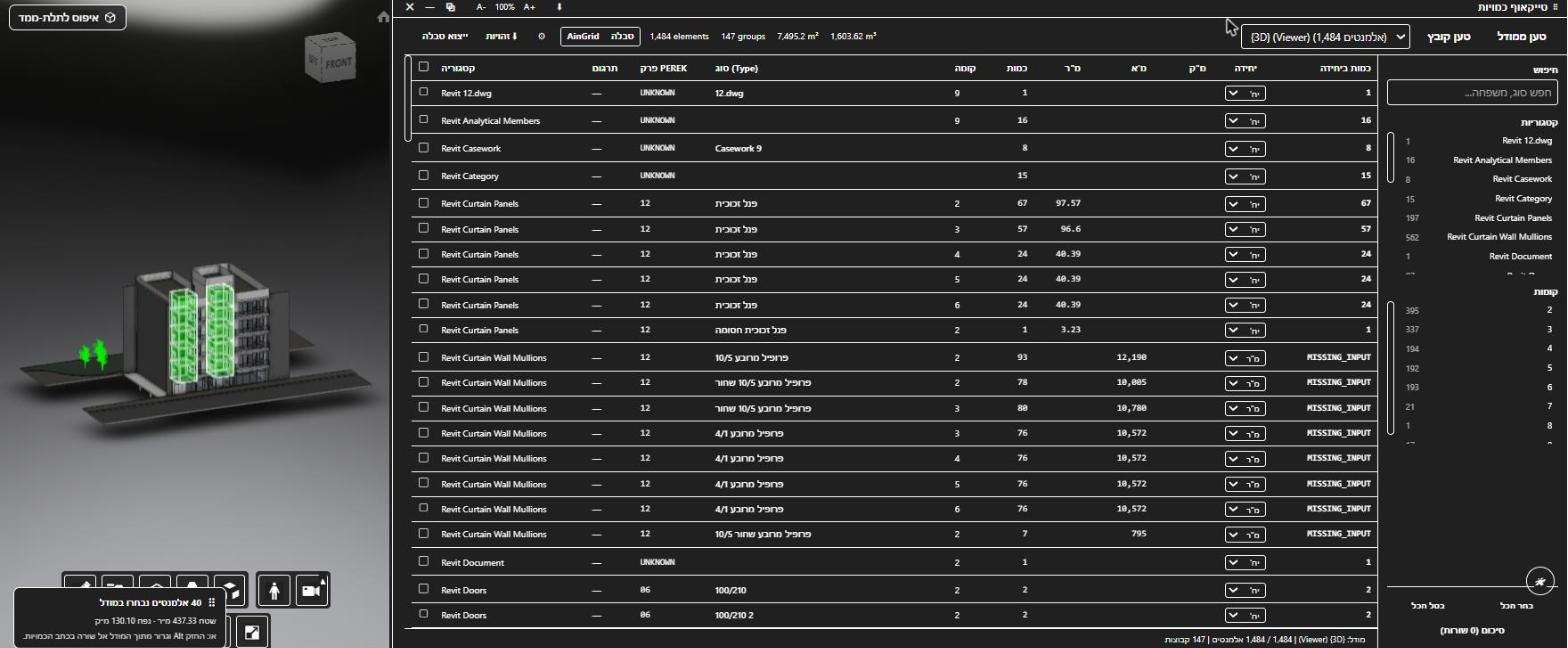
What you see in the Data Takeoff window
The window opens from the Tools menu, in the English and the Hebrew interface alike. Its first screen offers two ways in:
- From the model: the From Model button reads the elements of the model that is open in the viewer.
- From a file: you load an AiN Extract file, CSV or Excel, produced by AiN's extraction script in Dynamo.
Once the data is in, a table appears. Each row is a group of elements that share a category, a type and a level, and these are its columns:
| Column | What it holds |
|---|---|
| Category | The category of the group, as the model defines it |
| Chapter | The bill of quantities chapter the group belongs to |
| Type and level | The type name from the model and the level the elements sit on |
| Count | The number of elements in the group |
| Area, length, volume | The measurements of the group, from the model data |
| Unit and quantity | The unit of measurement for the group and the quantity measured in that unit |
The window also has a free-text search, filters by category and by level, and a summary line with the number of elements, the number of groups, the total area and the total volume. When an element has no length, the cell is marked as missing, not shown as zero. Two export buttons download the table or the summary as a file, with an active subscription.
What a Revit quantity takeoff should give you
When I look at any Revit quantity takeoff tool, I ask three questions. Can I see everything? Do I know what is missing? Can I get to the bill of quantities without copying numbers by hand? This is how the window answers them:
- The whole model in one table. Every category, by type and level, in one place. You see the full picture before you start writing items, and a category that should not be there, or a floor that is missing, is easier to spot.
- Missing stays missing. A zero in a takeoff is a quiet error that can travel all the way to a tender. A cell marked as missing is a clear question for the designer or the modeller.
- Close to the language of the bill. Type and level are also how work is usually split into items and phases, and the chapter column takes the table one step closer to the bill of quantities.
- One floor or one system at a time. The level and category filters let you check a typical floor, or only the walls, without scrolling through the whole model. The summary line gives you an order of magnitude to compare with what you know about the building.
- Two ways in. When the model is open in AiN, you work from it; when you already have a file from the extraction script, you load that instead.
- Room to carry on. The table and the summary export to a file, with an active subscription, so the work can continue outside the software.
How to run a takeoff, step by step
- Open the model in AiN: a Revit, Navisworks or IFC model.
- From the Tools menu, open Data Takeoff and choose From Model, or load a file from the extraction script.
- Read the summary line, then filter by category and level. Check that the floors and categories you expect are really in the table.
- Look for cells marked as missing and decide on each one: complete it by hand in the bill of quantities, or send the question back to the designer.
- Export the table or the summary (with an active subscription), or move on to the full bill of quantities window, where every line stays linked to its elements.
Where the window stops
What the window does not do: it shows quantities as they are in the model data or the file, nothing more. The project's method of measurement, the decision about which item a quantity belongs to and the check against the drawings stay with the quantity surveyor. Downloads need an active subscription.
A second window, layer decomposition, breaks compound walls and floors into their layers, materials and thicknesses. It is currently in the Hebrew interface only.
A quantity in the model is a good start, but it is not yet a quantity in the bill. When you need the raw properties behind a number, the page on BIM data extraction covers the analysis tools, the data table and the raw data explorer. For an overview of every window, see the AiN BOQ software page; for the next step, where each quantity gets a source and an approval, see the quantity audit trail page. My work as a quantity surveyor in Israel is described on the home page, in Hebrew.
Frequently asked questions
Does a Revit quantity takeoff replace a quantity surveyor?
No. The window sorts the model into a table and marks what is missing, but the method of measurement, the split into items and the check against the drawings are professional work. That is also how I use the software in my own work.
Do I need Revit installed to use the window?
Not for the first path: the window reads the model loaded into AiN, and AiN runs in the browser. The second path starts from a file produced by AiN's extraction script, so it suits people who already work with that script.
How is the takeoff different from the full bill of quantities?
The takeoff shows the model as it is: groups of elements by category, type and level. The full bill of quantities builds items in chapters from that data, and every line keeps its link to its elements, with a source for the quantity and an approval column.
What happens when the model is missing a value?
The cell is marked as missing, not as zero. A missing length is not a length of zero: it is a sign that something in the model was not defined, and it is worth checking before the quantity goes into the bill.
Can I export the takeoff?
Yes, with an active subscription. The window exports the table and the summary as files.
Want to see AiN on your own model? The AiN Engine site has the demo video, the pilot for one project and the login. For quantity surveying work in Israel, write to me through the form.
AiN Engine website Contact form* Created with AI for marketing, for illustration only. Not reviewed by Yaakov Avital and not professional advice. Every project must be checked on its own by a professional quantity surveyor and an engineer.