Quantity audit trail: every quantity carries its source
A quantity audit trail means that every number in a bill of quantities can answer one question: where did you come from? In AiN Engine, the software I develop and work with, the answer sits right next to the quantity. A coloured chip says whether it came from the model, a pivot, an imported file or a manual entry; a click on the chip highlights the elements behind the number; and an approval column shows whether a person checked the line, and when. It is meant both for the quantity surveyor who submits a bill of quantities and for whoever receives one to check. This page covers what you see, how to check a bill of quantities before you submit it, and what an approval does not mean.
What you see next to every quantity
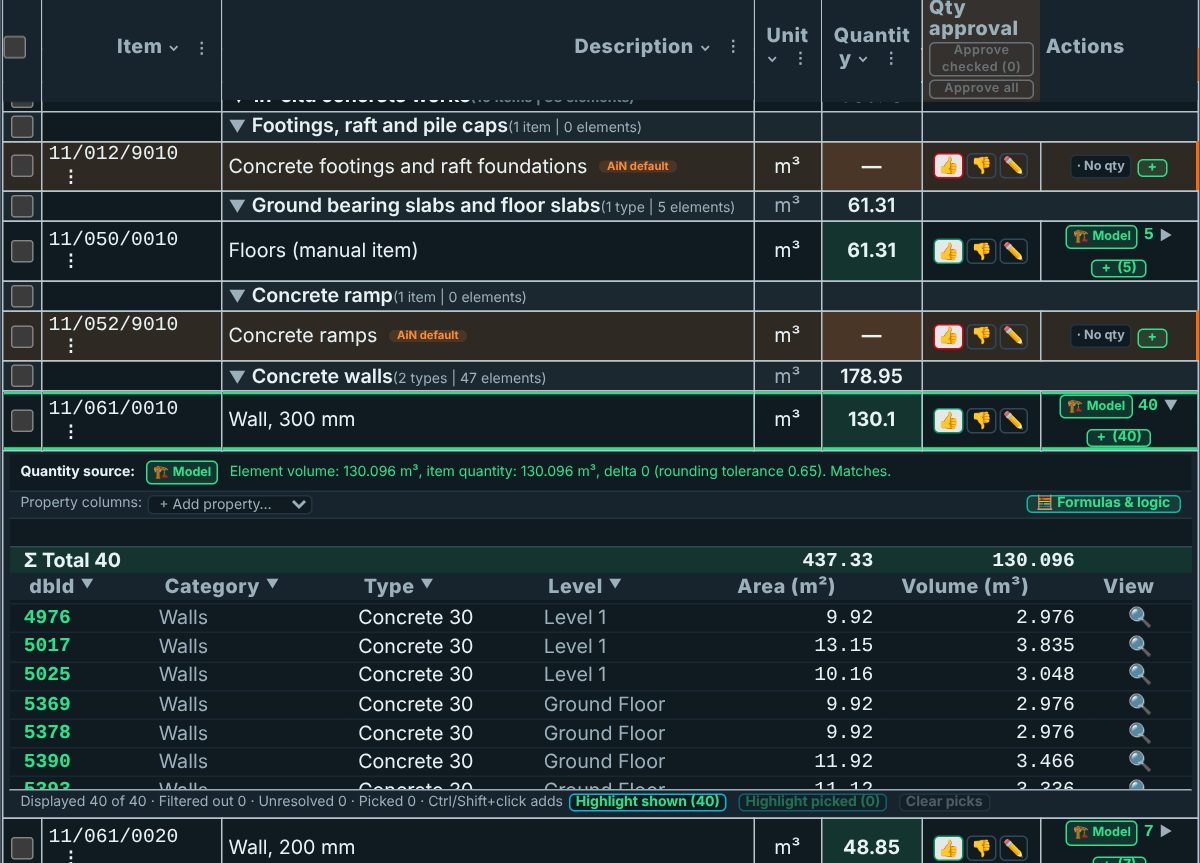
Every quantity in the AiN bill of quantities carries a small coloured chip that names its source. A green model chip means the quantity was measured from elements in the model. Other chips mark a quantity from a pivot, an imported file, a template or a manual entry, each in its own colour, and one marks a quantity with no documentation behind it. Where the model has nothing to give, the line shows a no-quantity badge instead of a zero.
A linked line has a model button with its element count. Expand the line and you get the table of its elements, with the category, type, level, area and volume of each one. The link between a line and the building has its own page: the model-linked BOQ.
Smaller badges can sit beside the chip: imported, estimate, approved mapping, the number of specifications and of linked sources, and the evidence status of the line. A quantity audit trail rests on exactly these marks: they show where a number stands on solid ground and where it is still waiting for a check.
The approval column: a person approves, not the software
In the View menu of the bill of quantities, switch on "Quantity approval — column". Every line then gets a cell with an "Approve" button. A click records a manual review of that line, and the cell changes to "Approved" with the date.
- A change cancels the approval. If the quantity changes after approval, the cell turns to "Stale, re-approve". An old approval never stays valid for a new number.
- Green only for model quantities. The cell is green when the quantity comes from the model with full coverage. In every other case its tooltip says "(from us, review)".
- Bulk approval covers only what you see. "Approve checked rows" and "Approve all shown rows" touch only the lines on screen, so a hidden line is never approved unseen.
- Blocked when it would be ambiguous. You cannot approve without signing in, or with several models loaded at once, because approval is per model. Lines that are evidence only cannot be approved either.
- No false status. If the approvals fail to load, the lines are not shown as unapproved.
Item details, Quantity Facts and source sheets
Three more tools complete the picture:
- Item details. The details entry in the line menu opens the full picture of the item, including its evidence status and a partial-coverage note when only part of it is covered.
- Quantity Facts. In the Data menu, Quantity Facts lists verified quantity sources and lets you map one of them to a line. Verified facts are kept apart from proposals, so a suggestion and a fact never mix.
- Source sheets. From the Edit menu you can pick a source sheet and link it to the line, so a quantity that rests on a calculation in a separate sheet points to it.
When the bill is ready, the File menu exports it to Excel together with its evidence, with an active subscription. Revit schedule data can also come in as evidence only: it changes no quantity until someone approves it explicitly. The page on Revit schedules against AiN quantities explains how that comparison works.
A quantity audit trail before you submit, step by step
- Open the full bill of quantities and switch on the approval column, one model at a time.
- Go chapter by chapter. Each chapter line shows how many items and elements it holds, which is a first sign of an empty or suspicious chapter.
- On every line, look at the chip. A model quantity: click it and check the elements. A manual, imported or undocumented quantity: make sure it has a basis, and link a source sheet where needed.
- Complete the lines with no quantity or with partial coverage, or record an assumption. Whatever is missing stays marked as missing, not as zero.
- Approve. Before you approve in bulk, open only the chapter you have checked, because only the lines on screen get approved.
- After a model update, go through the lines marked "Stale, re-approve", and only then export.
What an approval does not mean: an approval records that a person checked the line; it is not proof that the quantity is right. It is tied to the approved quantity, so any change sends the line back for review. AI suggestions never enter a quantity and never approve a line; the decision stays with a person.
The software does not finish the check on its own. For manual completion that stays labelled, see the editable BOQ page; for every window of the software, the AiN BOQ software page; and for my work as a quantity surveyor in Israel, the home page, in Hebrew.
Frequently asked questions
What is the difference between a model quantity and a manual one?
The chip shows it. A model quantity rests on elements you can highlight and check; a manual quantity is marked as manual and never passes for model data. Even a manual edit that was reverted is kept in the history.
Can the AI approve a line?
No. An approval is a click by a person. AI suggestions are marked as suggestions only and do not enter the quantity.
What happens to an approval when the model is updated?
If the line's quantity changed, the cell turns to "Stale, re-approve". You check the line again and approve it again; an old approval does not move to a new number by itself.
Why keep a quantity audit trail if the numbers come from the model anyway?
Because a model can be partial, and one bill can mix model data with manual and imported numbers. The trail shows which is which, so whoever reviews the bill knows where to look before it goes out to tender.
Can I approve the whole bill in one click?
There is "Approve all shown rows", but it approves only the lines on screen. That is why I suggest approving chapter by chapter, after you have gone through each one.
Want to see AiN on your own model? The AiN Engine site has the demo video, the pilot for one project and the login. For quantity surveying work in Israel, write to me through the form.
AiN Engine website Contact form* Created with AI for marketing, for illustration only. Not reviewed by Yaakov Avital and not professional advice. Every project must be checked on its own by a professional quantity surveyor and an engineer.