BOQ from Revit: a full bill of quantities, straight from the model
If you want a BOQ from Revit without retyping the model into a spreadsheet, the full BOQ window in AiN Engine is where that happens. AiN is the software I develop and use in my own work as a quantity surveyor. When a Revit, Navisworks or IFC model finishes processing, the window opens by itself and builds chapters, items, units and quantities from it, and every line measured from the model stays linked to its elements. This page is for quantity surveyors, engineers and contractors who prepare a bill of quantities from a model: what you see in the window, what it gives you and what it does not do yet.
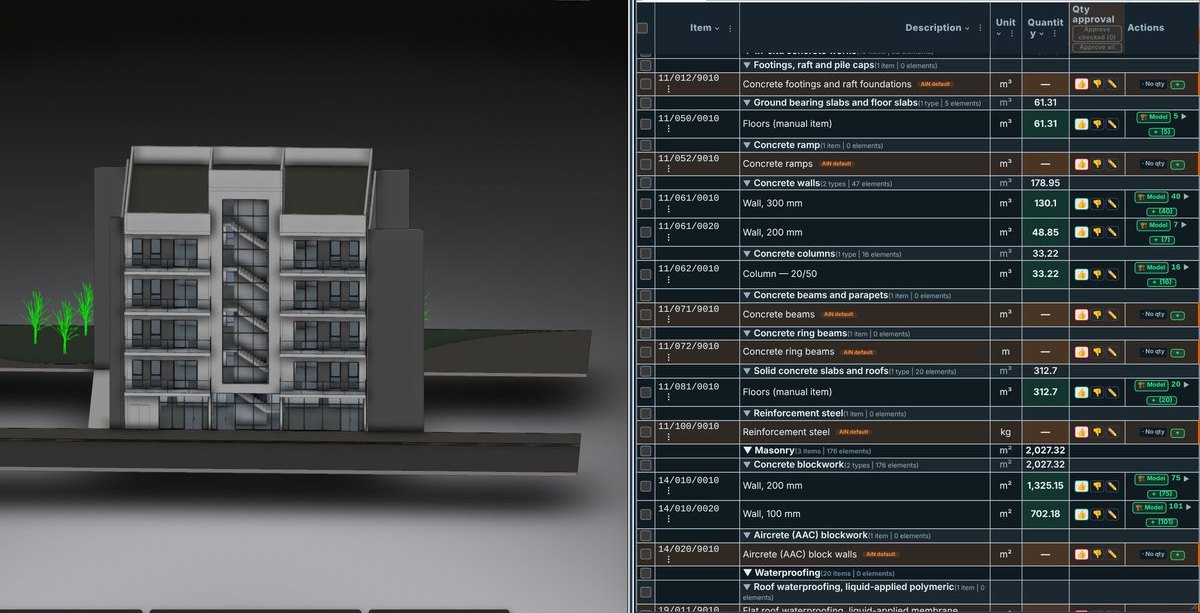
What you see in the full BOQ window
You can also open the window at any time from the BOQ button in the top bar. This is what it shows, from top to bottom:
- A menu bar: File, Edit, View and Data, plus an AI Detection menu, a Tools menu and a Formats menu.
- Sheet tabs styled like a binder and arranged in groups. The BOQ tab always comes first.
- Chapters and sub-chapters that open and close. Each chapter row shows how many items and elements it holds.
- Item lines with the item code, description, unit and quantity, plus columns for notes and actions. A quantity approval column can be added from the View menu.
- A source chip next to every quantity. A quantity that came from the model gets a green model chip.
- Line actions: a model button showing how many elements sit behind the item, and a button for picking elements from the model. An item with nothing in the model shows a no-quantity badge.
- A statistics strip: items, elements, volume and a model coverage percentage, coloured green, yellow or red.
- A status badge that says draft, with the number of open issues, or ready.
What it gives you
First, you do not start from an empty spreadsheet. The bill of quantities is built from the model, in the browser and with nothing to install, and what gets built stays connected to its source. Clicking the model button on a line shows the elements behind the quantity, so every number can be checked rather than taken on trust. That link between a line and its elements has its own page: the model-linked BOQ.
Second, the window does not dress things up. A missing quantity never turns into a zero: an item with no data in the model carries a no-quantity badge, and a missing value shows as a dash, not as a number. The status badge is just as plain, and while issues remain open the BOQ stays marked as a draft. To me, that is what a BOQ from Revit has to give you: a document that shows what is missing, not one that only looks complete.
Third, the decision stays with a person. AI suggestions are labelled as suggestions and never enter the quantity, and approving a line is a click by the user, with a date. The coverage percentage in the statistics strip gives a quick picture of how much of the BOQ is covered by the model and how much still waits for completion.
How to get a BOQ from Revit, step by step
- Open a Revit, Navisworks or IFC model. When processing finishes, the full BOQ window opens by itself.
- In the Formats menu, choose between the project BOQ, which is linked to the model automatically, and a generic BOQ.
- Go through the chapters one by one: open each one, check the unit and quantity of every item, and click the model button whenever you want to see the elements.
- Deal with the items that show no quantity: assign elements to them from the model, or complete them by hand. A manual entry stays marked as manual, as described on the editable BOQ page.
- Add the quantity approval column from the View menu and approve each line once you have checked it.
- Export to Excel from the File menu. Downloads need an active subscription.
The chapter structure follows the language and standard chosen in Settings: CSI MasterFormat with US English, NRM2 with UK English, or the Israeli standard with the Hebrew interface.
The sheets and panels around the BOQ
The sheet tabs move you between the bill of quantities and its companion sheets: pivot, rooms, calculation, schedules, and the execution and finance sheets. A separator divides one group from the next, and a tools menu sits at the end of the row. If you prefer a quieter screen, the compact view template shows only the BOQ and the pivot.
The Tools menu at the top of the window opens the sheet groups. When automatic processing results exist for the model, the window also shows an automatic quantities panel with element counts, next to the project quantity decisions those quantities rest on. When there are no such results, the panel does not appear.
What the window does not do yet
The window is still marked Alpha, and rightly so. It works and I use it, but it is in active development and things in it change. Concrete has the highest level of automation today. Other trades need more manual completion, so do not expect the bill of quantities to come out of the model finished.
What the window will not do for you: it does not invent a quantity, a unit or a source that is not in the model, and it does not approve lines on its own. An item with no data stays marked as missing, and an AI suggestion stays a suggestion until a person checks and approves it.
Two more practical limits: approving quantities needs a signed-in account and works with one model loaded, and file downloads need an active subscription.
All the windows of the software are collected on the BOQ software page, and the takeoff window, which lists every model element by category, type and level, has its own page on Revit quantity takeoff. As for who is behind it: I am Yaakov Avital, a quantity surveyor and building technician in Israel, and I build AiN out of that work.
Frequently asked questions
Does AiN build the BOQ from Revit by itself?
It builds chapters, items and quantities from the model, but it does not decide for you. Whatever is missing from the model stays marked as missing, AI suggestions never enter the quantity, and approving a line is always a click by a person.
Which models can I open?
Revit, Navisworks and IFC models. Everything runs in the browser, so there is nothing to install.
What does the no-quantity badge mean?
It means the item has no data in the model. The quantity is missing, not zero, and it waits for elements to be assigned or for a manual entry. That way an empty line never slips into a total as if it had been measured.
Can I download the BOQ to Excel?
Yes, from the File menu, with an active subscription. The export formats and what each file contains are on the export BOQ to Excel page.
Want to see AiN on your own model? The AiN Engine site has the demo video, the pilot for one project and the login. For quantity surveying work in Israel, write to me through the form.
AiN Engine website Contact form* Created with AI for marketing, for illustration only. Not reviewed by Yaakov Avital and not professional advice. Every project must be checked on its own by a professional quantity surveyor and an engineer.