BIM data extraction: analysis tools, data table and raw model data
BIM data extraction is the step where I stop and ask what is really in a model before I trust a quantity that came out of it. In AiN Engine, the software I develop and work with, three main windows open next to the model for this, Analysis Tools to select and group, a Data Table to collect and a Raw Data Explorer that shows every property, with a Click Table beside them for the elements you select. This page is for anyone who works with models and wants to see the data behind the numbers.
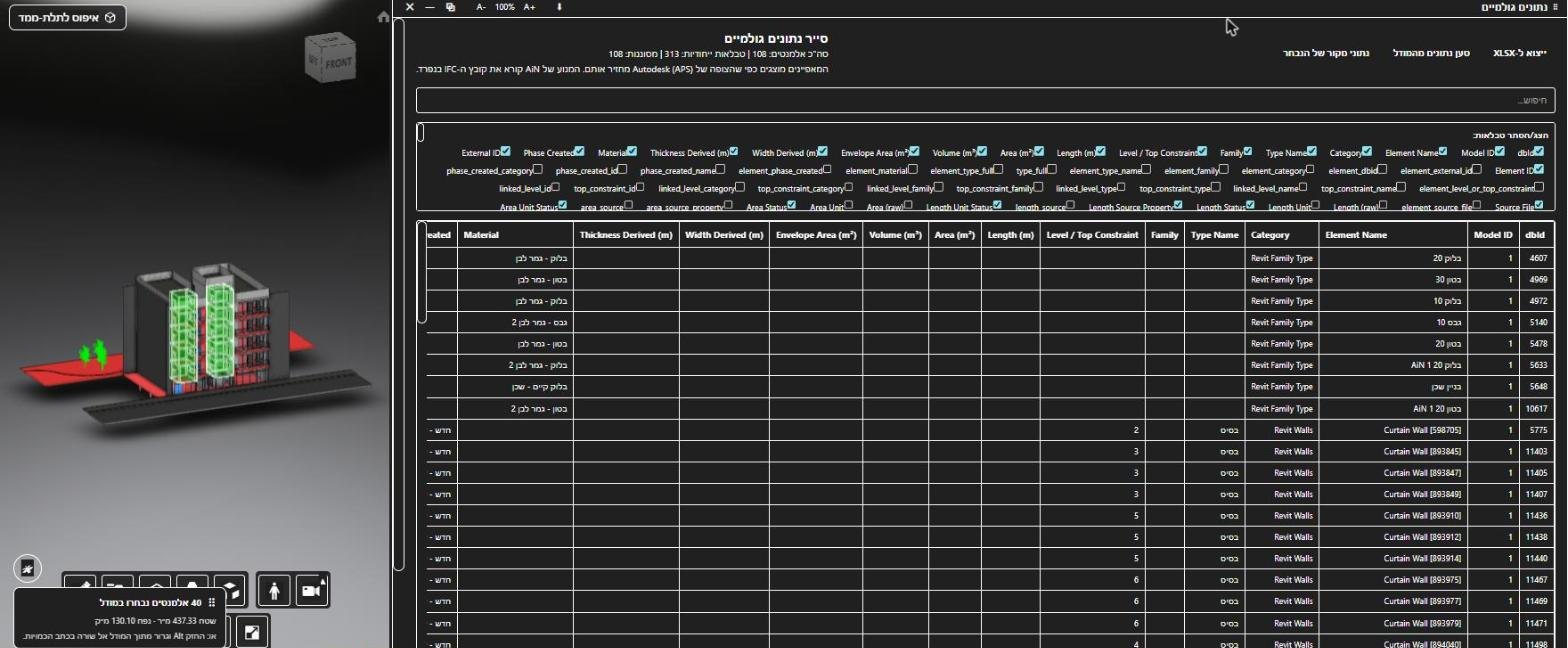
What you see: three windows and a Click Table
All four open from the Tools menu, in the English and in the Hebrew interface. Two of them also open by themselves when they have something to show.
- Analysis Tools: the element groups of the loaded model as visual clusters, with select-all, a basket of chosen elements, an engineering search box and a Quantification panel by category and level.
- Data Table: a spreadsheet-style table of the elements you chose or of rows from the bill of quantities, with sorting, filters, added columns and your own formulas.
- Click Table: one row for every element you select in the model, with its properties and a summary row.
- Raw Data Explorer: all the source properties of the selected element, as the Autodesk viewer returns them.
The Tools menu also lists a Live Spreadsheet, but it is still in development and saving does not work in it yet, so it is not covered here.
Analysis Tools: select, group and collect
Analysis Tools shows the elements of the loaded model in groups, as clusters you can take in at a glance. You can select a whole group, search with the engineering search box and collect elements in a basket. The Quantification panel inside the window groups them by category and level.
What you collect can be exported to Excel as a pivot-style summary, with an active subscription. In my work this helps when I need a focused answer, such as only the walls of one floor, without opening the whole bill of quantities. Totals by level and material inside the bill itself are covered on the BIM quantities pivot page.
Data Table and Click Table: collect, sum and pass to the bill
The Data Table is an Excel-like table inside the software. You can sort, filter, add a column and write your own formula, and its export button also needs an active subscription. When rows arrive from the full bill of quantities, it opens by itself.
The Click Table, whose header reads Properties window, works from the model side. You select elements in the model, and the table opens and records a row for each one with its properties. You can switch capture on and off, add property columns and see a summary row. A row from the table can be dragged into a line of the bill of quantities, and the element joins that line. The link between a line and the model is covered on the model-linked BOQ page.
The right-click menu of the Click Table also has a note to the modeller: a signed-in user writes a note about the element, and it is kept in the Notes sheet of the bill of quantities.
BIM data extraction down to the property
The Raw Data Explorer is where I check source data. You load the data from the model and get a count of elements and a count of unique properties. You can choose which columns to show and search them, and you select an element to see all of its source data.
When the unit of a value is resolved, a normalised metric value is shown as well. When it is not, only the value as it arrived is shown, with no guessing. The table can be exported to Excel with an active subscription.
For me it is an audit tool. When a quantity looks odd, I select the element and check what the model really says about it: its type, its level, its dimensions. When properties are missing or inconsistent, the model needs work before a bill of quantities comes out of it.
Worth knowing. The explorer shows properties as the Autodesk viewer returns them, while the AiN engine reads the IFC file separately. So the explorer is a window for checking source data, and it does not necessarily show the engine's calculation. Where the two differ, that is the place to ask a question.
What it gives you, and how I use it
- A focused answer without the whole bill: pick a group, collect it in the basket and export a summary.
- Data you can work on: sorting, filters and formulas in the Data Table, inside the software.
- An audit down to the source: every source property of an element, with a normalised value only when the unit is known.
- From the model to the bill by dragging: captured elements join a line in the bill of quantities, and model problems go into a note to the modeller.
- Load the model and open the window you need from the Tools menu.
- In Analysis Tools, group and select what you want to check, and collect it in the basket.
- Select elements in the model; the Click Table records them with their properties and a summary row.
- Open any element that looks odd in the Raw Data Explorer and check its source data.
- Drag what is right into the bill of quantities, and flag what is wrong with a note to the modeller.
The gain is transparency rather than speed: for any quantity you can check the model data behind it. BIM data extraction does not replace measuring, but it gives the measuring a base you can check. The takeoff side is on the Revit quantity takeoff page, and all the windows of AiN are on the BOQ software page. I am Yaakov Avital, a quantity surveyor, and I build these windows around what I need when I work with models.
Frequently asked questions
What is BIM data extraction, and why does a quantity surveyor need it?
It means pulling out the properties a model keeps for each element, such as category, type, level, materials and dimensions. A quantity in a bill is only as good as the data behind it, and when you can see that data you can check the quantity.
What is the difference between the Data Table and the Click Table?
The Click Table starts from the model: it records the elements you select in it. The Data Table starts from your selection or from the bill of quantities, and lets you work on the data as in a spreadsheet, with sorting, filters and formulas.
Can I export the data to Excel?
Yes. Analysis Tools, the Data Table, the Click Table and the Raw Data Explorer all have an export, and every file download from AiN needs an active subscription.
Do I need to install anything?
No. These windows work in the browser, next to the model you loaded into AiN.
Want to see AiN on your own model? The AiN Engine site has the demo video, the pilot for one project and the login. For quantity surveying work in Israel, write to me through the form.
AiN Engine website Contact form* Created with AI for marketing, for illustration only. Not reviewed by Yaakov Avital and not professional advice. Every project must be checked on its own by a professional quantity surveyor and an engineer.