Model-linked BOQ: click a BOQ line, see it in the building
A model-linked BOQ is a bill of quantities in which every line knows which model elements it was measured from, and in AiN Engine that is how every line that comes from the model works. Click a line and its elements light up in the model; select elements in the model and AiN finds the lines they belong to. I work as a quantity surveyor and develop AiN, and I wrote this page for anyone who checks a bill of quantities or has to explain one: what the link looks like, how to work with it and why it matters.
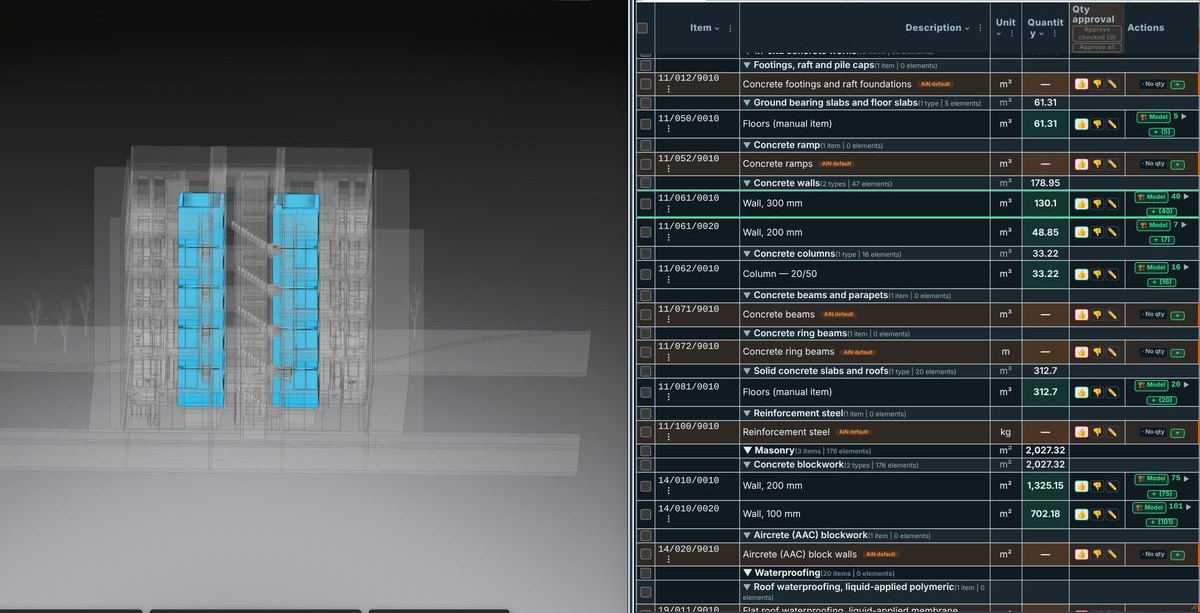
What you see when you click a line
Clicking a line in the bill of quantities highlights its elements in the model. A line of walls, for example, colours every wall that was measured in it, so you can see at a glance whether that is really what you meant to measure. A line measured from the model has a model button with its element count, and every chapter row shows how many items and elements it holds.
Open a line and its element table appears:
- The category, type and level of each element.
- The area and volume of each element.
- A plus counter with the number of elements in the line, and a pencil for editing.
The line's menu has three actions that show the line in the model: colour the elements, show them in the model, and focus on them. Next to them are the everyday actions: add a line after it, copy, delete, edit, details and save, plus a way to report an item that looks wrong.
From the model back to the line
The link works both ways. Select elements in the model and AiN finds the lines they belong to. At the same moment the Click Table, whose inner title reads Properties window, can open by itself and capture the selected elements:
- One row for every clicked element, with its properties.
- Switches for capturing and for opening automatically on every selection.
- A summary row, and a button that adds columns for more properties.
- Export to Excel, with an active subscription.
- For signed-in users, a right-click note to the modeller about an element, which lands in the Notes sheet of the BOQ.
From the Click Table you drag elements straight into a line of the bill of quantities, and the same works from the selection in the model. The Edit menu of the BOQ also has actions that add elements from the model to a line, remove them or replace the selection, and one that shows the checked lines in the model.
Element groups and formulas inside a line
Not every item is a single list of elements. In the line's menu, the selections and formulas option opens a window for editing the item, its selections and its formulas, where the line's quantity is built from groups of elements and from formulas:
- Each group gets a label, and the label goes into the item description.
- Groups can be merged, and the line's unit and formulas can be set.
- Removing a group from a line does not delete any element from the model.
This helps when one item collects several kinds of elements: the labels go into the description, so whoever reads the line understands what it includes.
Why a model-linked BOQ is easier to check
In an ordinary bill of quantities, a number is just a number. When someone asks where a quantity came from, you go back to the drawings and measure again. In a model-linked BOQ you click the line and see the elements, with the category, level, area and volume of each one. The question of where a number came from gets an answer you can show, not only explain.
The link also helps you catch mistakes. An element filed under the wrong item, a missing level or a type that should not be there is easier to see when the elements are coloured in the building. Still, the link does not replace a check against the drawings and the specification. It shows what was measured, and a person still decides whether that is right.
What the link does not do: it shows which elements a quantity was measured from, but it does not check whether the model itself is right. An item with no data in the model has no elements to show and carries a no-quantity badge: the quantity is missing, not zero, and it waits to be completed.
How to work with the link
- Open the full BOQ window and click a line. Its elements light up in the model.
- Open the line and check the category, type, level, area and volume in its table.
- When you need a closer look, choose show in model or focus from the line's menu.
- In the other direction, select elements in the model, see which lines they belong to, and drag whatever a line is missing from the Click Table into it.
- When an item is built from several kinds of elements, open the selections and formulas window and split it into labelled groups.
- If something in the model looks wrong, leave a note to the modeller from the Click Table; it is kept in the Notes sheet.
All the windows of the software are on the BOQ software page, and the source behind every quantity, whether model, calculation or manual entry, is on the quantity audit trail page. As for who is behind it: I am Yaakov Avital, a quantity surveyor and building technician in Israel, and a model-linked BOQ is the way I want to work.
Frequently asked questions
Does the link also work from the model to the line?
Yes. Select elements in the model and AiN finds their lines. The Click Table captures the selected elements, and from there you can drag them into a line.
What happens to the model when I remove a group from a line?
No element is deleted from the model. The group only leaves the line.
What data do I see for each element?
The line's table shows category, type, level, area and volume. The Click Table shows the properties of the clicked elements, and you can add property columns and a summary row.
Can I export the list of elements to Excel?
Yes, from the Click Table, with an active subscription. The export is the table itself: the captured elements and their properties.
Want to see AiN on your own model? The AiN Engine site has the demo video, the pilot for one project and the login. For quantity surveying work in Israel, write to me through the form.
AiN Engine website Contact form* Created with AI for marketing, for illustration only. Not reviewed by Yaakov Avital and not professional advice. Every project must be checked on its own by a professional quantity surveyor and an engineer.