Editable BOQ: manual completion that stays labelled
An editable BOQ starts from a simple fact: not every quantity comes from the model. In AiN, concrete has the highest level of automation, other trades need more manual completion, and some items are simply not in the model at all. This page shows how you add lines, edit quantities and enter manual calculations in AiN Engine, and how that completion stays marked, so whoever checks the bill knows what came from the model and what a person added.
What you see in the Edit and View menus
The menu row of the bill of quantities window has Edit and View next to File and Data. The Edit menu is arranged in groups:
- Lines: add a row, the built-in items list, edit the selected row, delete, and undo and redo.
- Model elements: add elements from the model, remove, replace the selection, select from a sheet, and unlink.
- Library and formulas: save an item to your library, edit a formula, select all and clear.
- The model view: show the checked rows in the model, and cancel isolation.
The View menu shapes the table: save your workspace, choose columns, font size and row height, a unified view or one split by buildings, and expand or collapse chapters. It can also show the items that still require completion, and it is where you switch on the quantity approval column. The settings button inside the bill of quantities window adds further display settings.
Editing one line in an editable BOQ
Any line opens for editing from its three-dot actions menu, or from "edit selected row" in the Edit menu. In the edit dialog you change the row fields. Reverting an edit does not wipe it: the dialog says "Edit reverted (kept in history)", so even an edit that was undone stays on record.
The row menu also opens a second window for selections and formulas, where the quantity of a line is built from elements. There you group the elements, give each group a label that goes into the line's description, merge groups, set the unit and write formulas. Removing a group never deletes elements from the model.
In my own work as a quantity surveyor, this is where judgement comes in: which elements belong to the item, which unit it is measured in, and what is deducted. The software keeps the selection and the formula; the decision stays with me.
Items the model does not carry
Some items will never be in a model. For them, the Edit menu has a built-in items list: standard items you can add to the bill for exactly the cases where the model does not carry the item.
For calculations that do not sit on elements there is the Calculation sheet, one of the tabs of the bill of quantities. It is a calculation table you fill in yourself: length, width, depth and count, formulas, units and totals, with sum rows in blue and room for notes.
The calculation stays inside the project, next to the bill, not in a side file that gets lost. It can also be exported to CSV, and like every download in AiN, that needs an active subscription.
How you tell manual from model
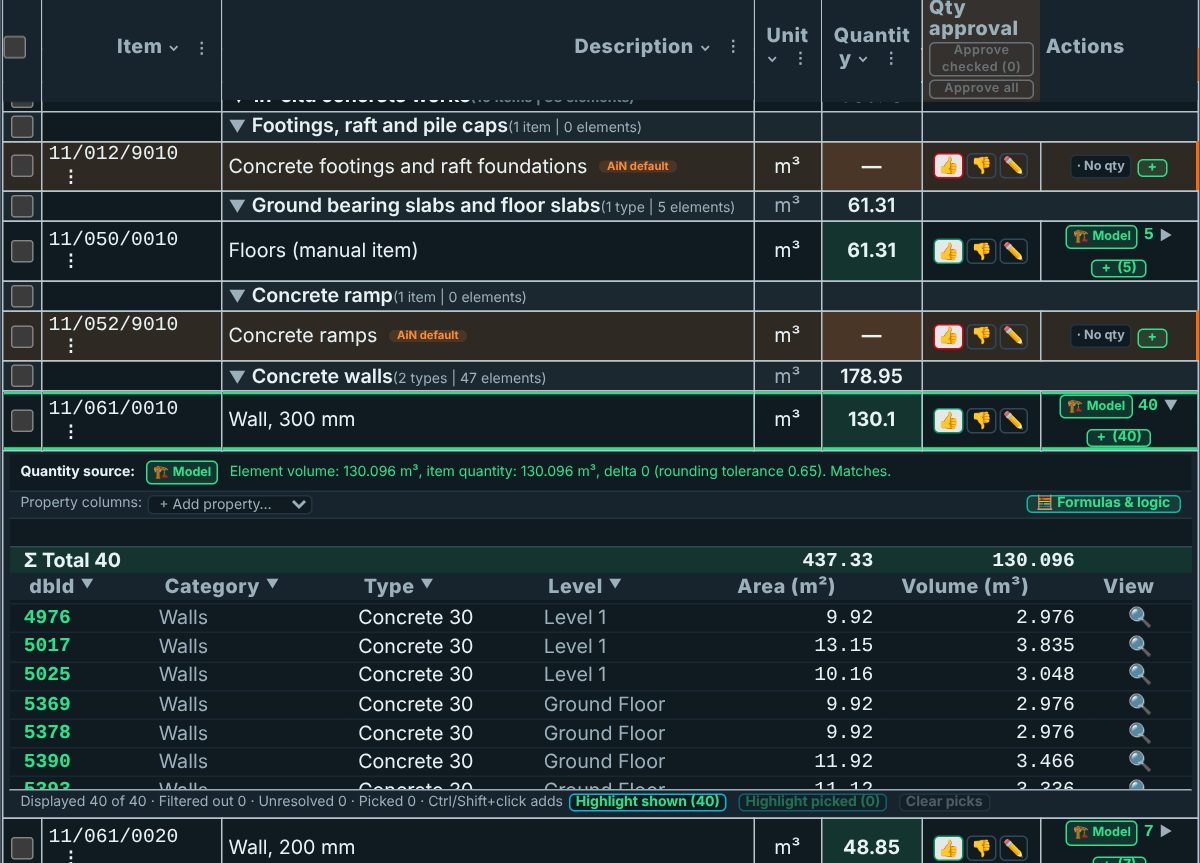
Next to every quantity there is a coloured chip that says where it came from. A model quantity carries a green model chip; a quantity from a manual source carries its own chip in a different colour. Clicking a chip highlights the elements behind the number, where there are any. This is what makes an editable BOQ something you can hand to a reviewer.
A row the model has nothing for carries a grey no-quantity chip, and a missing value is shown as missing, never as zero. The gap stays visible until someone completes it.
Approval reacts to edits too. In the quantity approval column, each line is approved by a person's click, with a date. If the quantity changes after approval, the line shows "Stale, re-approve" and has to be checked again. AI suggestions never go into the quantity and never approve anything. The quantity audit trail page covers the chips and approval in more detail.
How to work with it
- Open the bill of quantities and, in the View menu, show the items that still require completion.
- Add a missing item with "add a row" or from the built-in items list.
- In a line built from elements, add, remove or replace model elements, and build the quantity in the selections and formulas window.
- Write calculations that do not sit on elements in the Calculation sheet.
- Go over the chips and the approval column, and re-approve every line whose quantity changed.
- Work signed in and save the project from the File menu: saving, history and approvals need a login.
What is not there yet: the edit pop-up of a row lists the available items, but picking from that list interactively is not available yet. Until then, add elements through the Edit menu or through the row's selections and formulas window.
I am Yaakov Avital, a quantity surveyor who develops AiN, and I built this part around what I need when I check a bill: knowing, line by line, what was measured and what was completed by hand.
All the windows are on the BOQ software page, the bill of quantities window page explains the window these menus belong to, and when the bill is ready, the Excel export takes it out in the standard you chose.
Frequently asked questions
What happens to an approval when I edit a quantity?
If the quantity of a line changes after it was approved, the approval turns stale and the line shows "Stale, re-approve". That way a late edit does not carry an old approval.
Can AI fill in the missing quantities for me?
It can suggest, but a suggestion is a candidate, not a quantity. AI suggestions do not go into the quantity, and every line is approved by a person.
Where do I see what is still missing?
The View menu can show the items that still require completion, and rows the model has nothing for carry the no-quantity chip. Missing values are shown as missing, not as zero.
Can I undo a change in an editable BOQ?
Yes. The Edit menu has undo and redo, and a reverted row edit stays in history instead of disappearing.
Want to see AiN on your own model? The AiN Engine site has the demo video, the pilot for one project and the login. For quantity surveying work in Israel, write to me through the form.
AiN Engine website Contact form* Created with AI for marketing, for illustration only. Not reviewed by Yaakov Avital and not professional advice. Every project must be checked on its own by a professional quantity surveyor and an engineer.