Online BIM viewer: the model next to the bill of quantities
The online BIM viewer in AiN Engine is where every job I do in the software starts. A Revit, IFC or Navisworks model opens in a browser tab with nothing to install, and once the model is processed, the bill of quantities built from it opens right next to it. This page covers what you see in the viewer, what it does today and what is still in development.
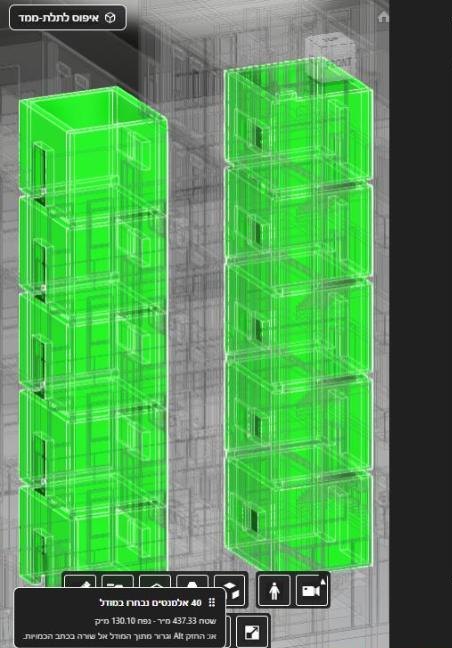
What you see in the online BIM viewer
The screen can be shared between the 3D model and the bill of quantities, or show just one of them. Two controls in the top bar come up in almost every session: the model picker and the View menu.
- Model picker: a drop-down that groups your models by project, with search and sort. You add a model to the view or remove it, load all of a project's models together in one step, and place a model manually by coordinates.
- View menu: groups for navigation, section, measuring, layers and camera; filters by level and by category; an explode slider that pulls the parts of the model apart; and a dimming mode.
- Several models at once: when more than one model is loaded, you get options for arrangement, tint and a see-through ghost display.
- Screen layout: model and BOQ together, model only, or BOQ only.
- Saved views: save a view by name (Save view as… in the File menu) and come back to it from the list.
What it gives you when you work on a BOQ
The viewer is not there for show. It is there so you can see in the building what was measured. Clicking a line in the bill of quantities highlights its elements in the model, and selecting elements in the model takes you to their lines. From the edit menu of the BOQ you can show only the elements of the selected lines, then cancel the isolation when you are done. I describe this two-way link in detail on the model-linked BOQ page.
In my own work I use the filters in almost every check. When I check the quantity of one floor, I leave only that floor and that category on screen and look for an element that is missing or counted twice. A section through the building shows what happens between floors, and the explode slider separates parts that are hard to see when they sit tight against each other.
The Tools menu also has a Takeoff Tools window: scale calibration, distance, area, angle and count, directly on the model or on a sheet open in the viewer. These are manual measurements, and the tool does not decide what goes into an item. For quantities from PDF and DWG drawings when there is no model at all, there is a separate page on PDF quantity takeoff.
A view-only link for people without an account
Not everyone who needs to see the model works in AiN. The File menu has Share model…, which creates a link to a view-only page. Whoever opens the link sees the model in 3D, without the bill of quantities and without names, and does not need an account. To create the link you have to be signed in as the owner of the model.
I use it when someone on a project wants to see what we are talking about, without sending them a heavy file and without exposing the bill of quantities itself. For them it is an online BIM viewer in the simplest sense: click a link and see the building.
How to use it, step by step
- Open a model from the File menu (Open model…) or from your Autodesk cloud files. Both routes are covered on the BIM model management page.
- In the model picker, choose what to load, and add more models of the same project if you need them.
- In the View menu, filter levels and categories, cut a section and dim, until only what you are checking is left on screen.
- Choose a screen layout: model and BOQ together, or one of them on its own.
- Save the view by name so you can return to it at the next check.
- When someone outside the system needs to see the model, create a view-only link for them.
What is still in development
What the viewer does not do yet: models are displayed today in Autodesk's viewer, and AiN's own display engine is still in development. Aligning one model to another by common points is also in development, so when two models do not sit on top of each other, you place one of them manually by coordinates.
An online BIM viewer does not replace the software the model was built in. This one is for looking, filtering, measuring and linking lines to elements, not for building the model. When something in the model is missing or wrong, the fix is made by whoever built it, and until the fix arrives I write the assumption I worked with into the bill of quantities.
Frequently asked questions
Do I need to install anything to view a model?
No. Viewing happens in the browser. You need an account to upload a model, save your work and open models from the cloud, and someone who receives a view-only link needs no account at all.
Which files can I open in the viewer?
Revit, Navisworks and IFC models, from a file on your computer or from your Autodesk cloud files. Once the model is processed, its bill of quantities opens next to it.
Can I see several models of the same project together?
Yes. Pick several models in the model picker, or load all of a project's models in one step. With several models loaded you get options for arrangement, tint and a see-through display.
Does the viewer replace Revit?
No. Revit is where the model is built and corrected. The viewer in AiN is for seeing the model next to the bill of quantities, filtering it, measuring on it and linking lines to elements.
I am Yaakov Avital, a quantity surveyor in Israel, and the viewer is one window of the BOQ software I build out of that work. The other windows, from the full bill of quantities to the Excel export, each have their own page there.
Want to see AiN on your own model? The AiN Engine site has the demo video, the pilot for one project and the login. For quantity surveying work in Israel, write to me through the form.
AiN Engine website Contact form* Created with AI for marketing, for illustration only. Not reviewed by Yaakov Avital and not professional advice. Every project must be checked on its own by a professional quantity surveyor and an engineer.