BIM clash detection and quality control for the bill of quantities
BIM clash detection is a check I run before a bill of quantities built from a model goes out, because for a quantity surveyor two elements in the same space are a quantity question as much as a coordination one. In AiN Engine, the BOQ software I develop and work with, the clash window runs in the browser on the models you have loaded. Next to it sit two simpler tools: a note to the modeller, linked to an element, and a Notes sheet that collects those notes in the bill of quantities. This page explains what you see in each one, how I use them and what they do not do.
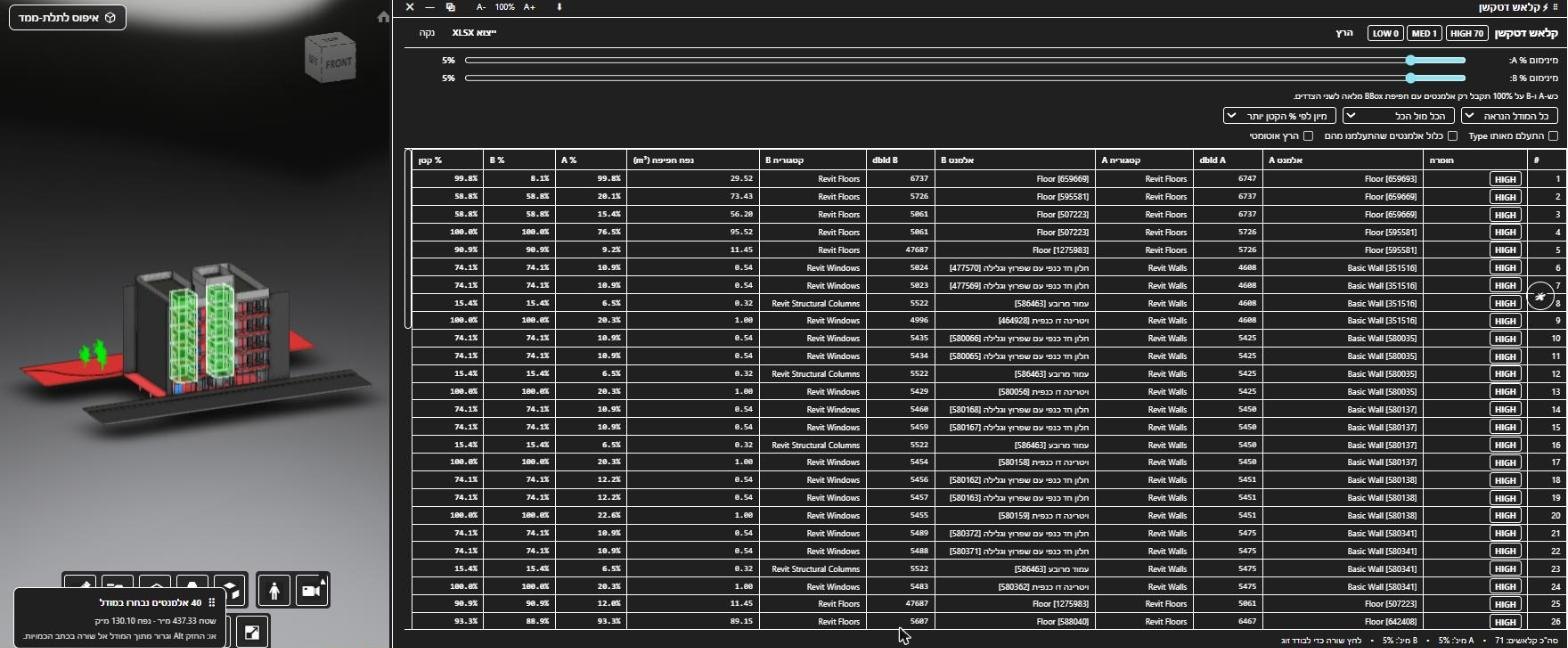
What you see in the clash window
- Where to find it: Clash Detection in the Tools menu, in both the English and the Hebrew interface.
- Thresholds: two sliders for the minimum overlap, one for element A and one for element B.
- Scope and options: what to check, for example the whole visible model with every element against every other, plus sorting, an option to ignore elements of the same type, and an automatic run.
- Results: a table arranged by severity, with both elements of each clash and their categories.
- In the model: the clashing elements light up in red, so you can see where each problem sits.
- Export: the results table goes to Excel with an active subscription.
- A warning: when several models are arranged side by side in the viewer, the window tells you that their positions are not real.
Notes to the modeller and the Notes sheet
A clash helps only when it gets back to whoever built the model. In AiN you select the element, open the right-click menu of the Click Table, the properties window that collects the elements you click, and choose the note to the modeller. You pick a note type and write the text. This needs a signed-in account.
The note is saved linked to the element and appears in the Notes sheet, one of the tabs of the bill of quantities window. That sheet collects the notes linked to model elements in one place, so the open questions become one list you can go through with the modeller, instead of screenshots spread across messages.
Why BIM clash detection matters for quantities
In Revit schedules, two elements that overlap and are not joined are both counted in full. A column that runs through a wall, or a beam that cuts into a slab, can end up in the quantities twice. A clash also marks a part of the model worth a second look before you trust its numbers.
So I treat every clash as a question with three possible answers: fix it in the model, account for it in the bill of quantities, or accept it because the overlap is already handled. The window gives you the list and shows where each clash is. The decision stays with a person.
How I use it
This is the order I follow when BIM clash detection is part of checking a bill of quantities:
- Load the project's models in AiN and make sure they sit in their real positions, not arranged side by side.
- Open Clash Detection from the Tools menu, set the minimum overlap and the scope, and run it on the visible model, with same-type elements ignored where that makes sense.
- Start from the most severe results. The clashing elements are red in the model, so each one can be seen in place.
- For every clash that needs a fix in the model, select the element and write a note to the modeller from the Click Table.
- Go through the Notes sheet with the modeller. If the clash table is needed outside AiN, export it to Excel with an active subscription.
What the clash window does not do
An honest note: the clash window finds and shows clashes; it does not fix the model. The fix is made in the original model, by whoever modelled it. When models are arranged side by side, the results say nothing about the real building, which is why the window warns you. And the window points to places to check in the quantities; it does not decide what the bill of quantities should say.
Two more quality checks, a model coverage report and a gap analysis against a built-in tender template, are currently in the Hebrew interface only.
Frequently asked questions
Does BIM clash detection in AiN fix the model?
No. It finds overlaps between elements of the loaded models, lights them up in red and lists them by severity. The fix happens in the model itself, and the note to the modeller keeps each finding linked to its element.
Do I need to install anything?
No. The clash window runs in the browser, on the models you have loaded in AiN.
Can I export the results?
Yes, to Excel, with an active subscription, like every file download in AiN.
Why does a quantity surveyor care about clashes?
Because overlapping elements can be counted twice, and because a clash often marks a part of the model that needs checking before its quantities are used. Coordination belongs to the design team; the quantities are the quantity surveyor's job.
Clash detection is one part of the software. All the windows are on the BOQ software page, how every quantity carries its source is on the quantity audit trail page, and the comparison between AiN's quantities and schedules exported from Revit is on the proof sheets page. For the other side of my work, see Yaakov Avital, quantity surveyor.
Want to see AiN on your own model? The AiN Engine site has the demo video, the pilot for one project and the login. For quantity surveying work in Israel, write to me through the form.
AiN Engine website Contact form* Created with AI for marketing, for illustration only. Not reviewed by Yaakov Avital and not professional advice. Every project must be checked on its own by a professional quantity surveyor and an engineer.